

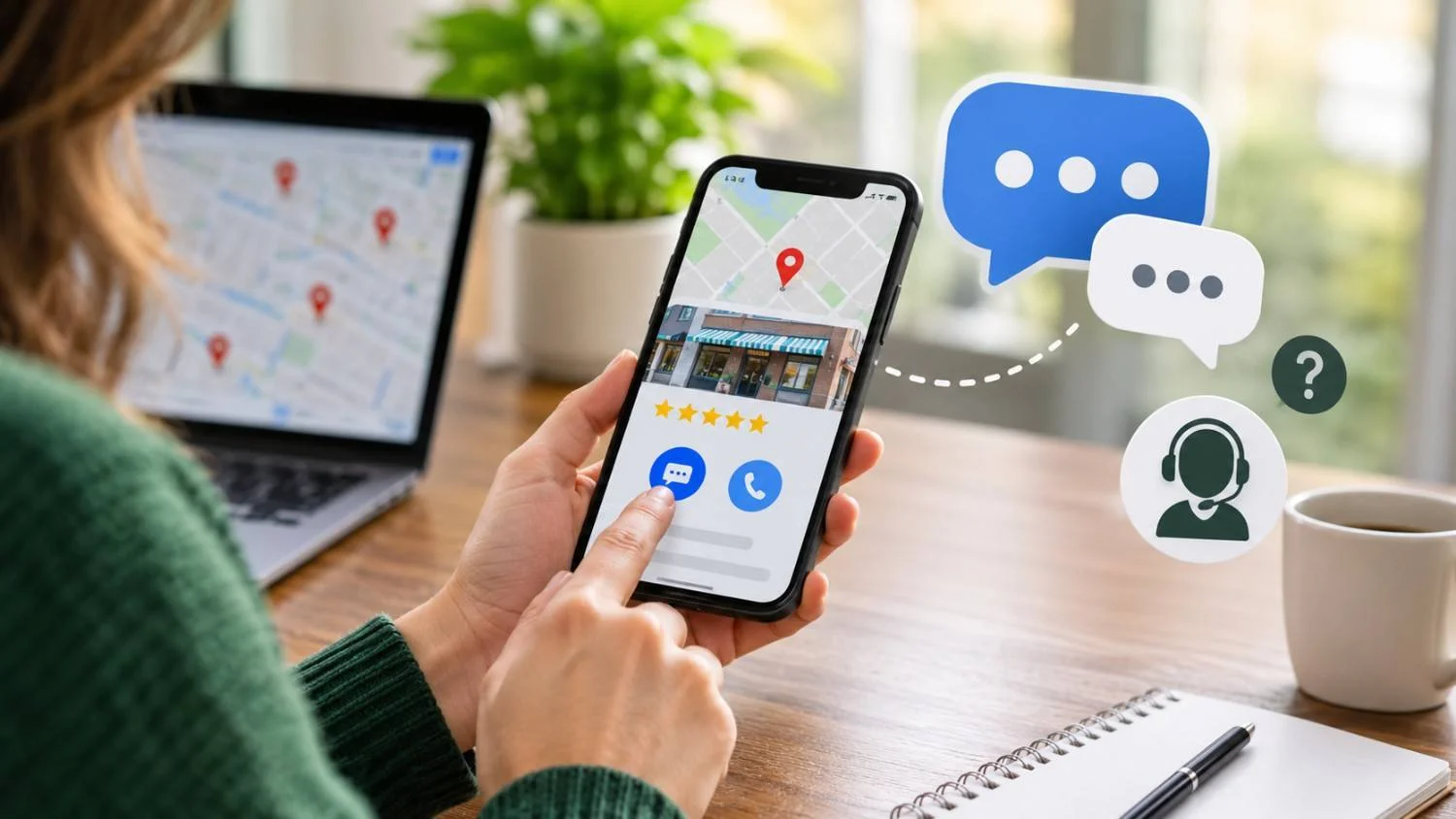

It’s 6:40 on a Tuesday evening in Marysville. A pipe is dripping under the kitchen sink, and a homeowner pulls out her phone. She searches “plumber near me,” scans three listings, and does what most of us do: she skips the website, skips the contact form, and looks for the fastest way to reach a human.
That moment is where Google Business Profile Messages can win you the job. When text or WhatsApp is turned on for your listing, a customer can start a conversation straight from Search or Maps with one tap. No hold music, no form, no waiting for a callback.
There’s a catch, though. Google has changed this area a lot over the past two years. The old in-profile chat is gone, the public Q&A section is being phased out, and plenty of tutorials online still describe features that no longer exist. This guide covers what actually works today, how to set it up, and how to reply so a message turns into a booked job. Messages work best when they sit on top of solid local SEO for small businesses, because a customer can only text you if your listing shows up in the first place.
Why Google Business Profile Messages Matter for Local Leads
Think about how people in Delaware, Springfield, or the outer edges of Columbus actually search. It’s on a phone, usually in the middle of something else, and often by speaking a request like “plumber near me” into a voice search while standing in a driveway. Calling isn’t always convenient, and filling out a five-field form on a small screen is worse.
A text button fits that behavior. It lets the customer ask a quick question on their own terms, and it lets you answer when you’re free to type but can’t pick up the phone.
Messages also tend to carry strong intent. Someone who takes the time to write “Do you do same-day water heater replacement in Union County?” is shopping for a provider right now, not browsing. That makes GBP Messages for leads closer to a phone call than a casual website visit.
Speed matters just as much. Local customers often message two or three businesses at once, and the first useful reply usually sets the tone. A fast answer says you’re organized and reliable before you’ve quoted a price. Strong reviews also play a big role in winning that first message , customers are more likely to text a business they already trust.
What Changed With Google Business Profile Messages and Q&A
If you’ve followed older guides, here’s the short version of what’s different:
- The old chat inbox is gone. Google’s help documentation states that chat was removed from Business Profiles on July 31, 2024, along with the chat FAQs feature. Customers can still find and contact you through Search and Maps.
- Public Q&A is being phased out. Reports indicate Google shut down the Q&A API in November 2025 and has been removing the public section from listings gradually since December 2025, replacing it with AI-generated answers.
- Messaging now runs through your own number. Eligible profiles can add a text message or WhatsApp option. These options are available in select countries and regions and may not appear on every profile.
- AI messaging is emerging. Some sources describe Google piloting an AI agent that answers customers and hands off to you. Parts appear to be rolling out in stages, so check your own profile rather than assuming access.
The takeaway: how to use Google Business Profile Messages today looks different from 2022. You’re no longer managing a Google-hosted inbox. You’re giving customers a direct line to a number you control, and making sure the information around it is accurate.
How to Enable Google Business Profile Messages (Step-by-Step)
Your profile needs to be claimed and verified first. Then:
- Go to your Business Profile (search your business name while signed in, or use Google Maps).
- Select Edit profile, then Contact.
- Next to Chat, select the edit (pencil) icon.
- Open the Chat dropdown.
- Choose Text message or WhatsApp.
- Enter a phone number that can receive texts, or a valid WhatsApp click-to-chat link.
- Save.
Practical notes for a clean Google Business Profile chat setup:
- Use a number you’ll keep: A shared business line or texting platform beats a personal cell.
- Pick one channel: If you add both, only the text message option usually shows to customers.
- Test it like a customer: Open your listing on your phone, tap the button, and send a message from a different phone.
- Don’t panic if the button is missing: Eligibility depends on region, verification, and profile type. Changes can take a little while to appear.
Before you rely on it, decide who owns replies and what your response standard is. The old chat feature asked businesses to respond within 24 hours. Today it’s your call, but 24 hours is far too slow for most local services.
Writing a Strong Google Business Profile Messages Welcome Message
The automatic reply is the first thing a customer sees after hitting send.
Weak: “Thanks for contacting us. We’ll get back to you.”
Stronger (home services): “Hi, thanks for texting Buckeye Comfort Heating & Air! We cover Delaware, Marysville, and Union County. A real person replies within 15 minutes from 7 am to 7 pm. What’s going on with your system, and what’s your zip code?”
Stronger (professional services): “Thanks for reaching out to Miller Family Dental in Springfield. We’re replying to messages Monday through Friday, 8 to 5. If you’re in pain, call us at (937) 555-0142, and we’ll fit you in today. Otherwise, tell us what you need, and we’ll follow up shortly.”
Good welcome messages name your service area, set a reply expectation you can keep, and ask one easy question to start the conversation.
Best Practices That Convert Messages Into Customers
- Reply fast: Aim for five to fifteen minutes during business hours.
- Be short and specific: Answer the question, then move toward the next step.
- Collect details without friction: Ask for one or two things at a time.
- Move to a call or booking when it helps.
- Track messages like phone leads: Log every conversation with a source tag.
|
Situation |
Best Move |
|
Simple question (hours, service area, availability) |
Reply by message |
|
Customer needs a price range |
Reply by message, then offer a call for a firm quote |
| Urgent problem (leak, no heat, injury) |
Call them right away |
| Complex or high-value project |
Reply, then book a call or on-site visit |
| Customer has gone quiet after a quote |
One friendly follow-up message |
Google Business Profile Q&A Status: What Replaced It
The old Q&A section let anyone post a public question on your listing. That feature is now being retired and replaced with AI-generated answers inside Maps. You can no longer write those answers yourself, but you can influence them by keeping your profile complete and accurate. For the latest official updates on messaging and profile features, check Google’s Business Profile help documentation. Reviews that mention specific services and towns also help.
Preparing Your Profile for Better Answers and Better Messages
Whether a human reads your messages or an AI summarizes your business, both rely on the same data. Tighten these up:
- Primary category (most specific one possible)
- Services list with short descriptions
- Hours (including holiday hours)
- Service area
- Recent photos of real work and your team
- Exact NAP consistency across the web
A cleanup like this is also the foundation of any solid local SEO strategy, since the same details feed both your map ranking and the answers customers see.
Common Mistakes That Kill Message Leads
- Ignoring the inbox
- Slow or generic replies
- Incomplete profile information
- Not guiding the conversation forward
Measuring Results and Improving Over Time
Google no longer provides clean chat metrics, so track messages yourself. Once a month:
- Count conversations from your texting platform or spreadsheet.
- Note how many became quotes or booked jobs.
- Check your average first-reply time.
- Compare against calls and website clicks in your profile insights.
- Test one change at a time and compare next month.
Frequently Asked Questions
How do I turn on Google Business Profile Messages today?
Open your verified profile, choose Edit profile, then Contact, and edit the Chat option. Select Text message or WhatsApp, enter a number or link, and save. Availability varies by region and profile.
Is the old Google Business Profile Q&A section still active?
It is being phased out. Google discontinued the Q&A API in late 2025 and has been removing the public section gradually. AI-generated answers are replacing it.
What happens if I do not reply within 24 hours?
The current text option has no Google-enforced deadline, but a day-long delay usually means the customer has already hired someone else. Aim for minutes during business hours.
Can messaging help generate leads in smaller Central Ohio towns?
Yes. In places like Richwood, Marysville, or Delaware, people often pick providers they can reach quickly and trust. A fast, friendly text reply helps a smaller local business stand out.
Should I use messages instead of my website contact form?
Use both. Messages suit quick mobile questions, while forms work for detailed or after-hours requests. Offering several ways to reach you means fewer customers give up.
Final Thoughts
Google changed the rules, but the opportunity is still there. A text button on your listing, a number you actually monitor, and a profile packed with accurate details give local customers an easy way to reach you at the exact moment they’re ready to hire. Fast, helpful replies are what turn search visibility into real jobs on your calendar.
If you’d like a second set of eyes on your setup, Richwood Marketing is offering a free consultation for Richwood Bank business customers. We’ll review your Google Business Profile, messaging setup, and reply process, then point out the quickest wins. When you’re ready, book your free consultation and we’ll take it from there.
